CNYCF Grants Portal
introducing the portal
CNYCF Grants Portal is the Central New York Community Foundation’s new online grant application portal. Upon creating an account, CNYCF Grants Portal gives you access to a listing of open funding opportunities, and any funding requests currently in progress, still requiring action, or awaiting a decision.
Below you’ll find information to help you:
- Steps to create an account on CNYCF Grants Portal
- Apply for funding
- Navigate the applicant dashboard


You will access the system via the log on page. It’s recommend that you bookmark this page in your internet browser for ease of access. Select the Create New Account button. If at any time after creating an account, you can’t remember your password, you may click on the Forgot Your Password button, enter your email address and will be sent a link to reset your password.
- Begin by creating an account in the CNYCF Grants Portal, start by visiting our logon page.
- Click the Create New Account

- Complete the Registration Form for yourself and your organization. After filling out all the information, click Create Account.

- The next page asks you to verify that you received your confirmation email. This helps ensure that you will receive other communications from this organization about your application.

- Click Continue to finish the registration process.
Now you have an account in this system, and remember, this is an account that you will use for both present and future applications.
Click here to view a Foundant walkthrough video tutorial: https://support.foundant.com/hc/en-us/articles/4479853059991-GLM-Applicant-Tutorial
Other options for logging in:
- If you have already created an account, enter your information and click Log On.
- If you have already created an account but have forgotten your password, click Forgot Your Password to reset it.
Upon confirming your email address and creating your CNYCF Grants Portal account, you will be immediately taken to the Apply page. On this page, you will see any open grant opportunities listed under the Quick Search bar. This page will also show you any relevant deadlines and other applicable information related to them.
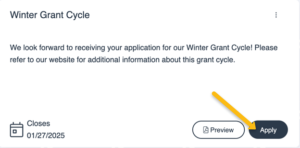
You can preview an application without having to complete any work by clicking on the Preview button. If the application has an eligibility quiz, you will not be able to preview the application until you have passed. To start a request, click on the blue Apply button under the opportunity you’d like to apply to. If you have an access code for a specific application, you can enter that in the field at the top.

When all fields are complete, submit the application by clicking the Submit button at the bottom of the form.
- If any required fields were not completed, or a response to a text question type is longer than the set limit, the system will not allow the form to be submitted.
- An error message appears listing the fields that need to be completed or edited. These fields are outlined in red so they are easy to identify as the applicant scrolls through the form.
- When a form is submitted successfully, the Applicant will be taken to a confirmation page.
- When the you click Continue you are taken to your dashboard where you can VIEW your submitted request
- Please note, once an application has been submitted you can no longer edit it.
Once in the application, note that your contact and organization information will automatically populate at the top of the form, as well as any email history for emails generated within the CNYCF Grants Portal.
- Contact the Community Foundation directly at grants@cnycf.org if you need to change your organization’s information.
- Click the Question List button for a PDF copy of the application.
- Once completed, you may click the Application Packet button to download a copy of the questions and your responses.
- You can always see your application within your Dashboard even after you submit it.
- If the application has a specific deadline, it will be listed at the top of the application.
Work your way through the form responding to the questions. Helpful things to note:
- Please note that any fields with an asterisk are required fields and must be completed prior to submitting an application.
- As you complete the form, the system will auto-save every 100 characters typed or every time you click out of a field.
- You may collapse question groups as you go, once you’ve finished all of the questions in that group, as an indicator to yourself that you’ve completed that section and reduce scrolling time.
- Some fields have character limits.
- Responses that are longer than the set limit will be saved, but an error message will appear informing you that the limit has been exceeded. You will not be allowed to submit the form until the length of the response has been decreased in accordance with the limit.
- File upload fields will only accept one file, per field.
- Upload fields have size limits. If you attempt to upload a file that is larger than the set MB limit, you will receive an error message that the file is too large and will not be saved.
- Once a file has been uploaded, it may be deleted by clicking the red X next to the file name and a new file can be uploaded.
- Even though the Grants Portal is auto-saving there is still a Save button at the bottom of the form.
- When you click save, you are taken to a confirmation page, so you know the save was successful.
- If you click Continue you will be taken back into the form so you can continue working.
- If you save and exit the Grants Portal, you will access the draft of the form from your Dashboard the next time you log in. Pick back up where you left off by clicking the Edit link to the right of the request.
- When you click save, you are taken to a confirmation page, so you know the save was successful.
To access your organization’s Applicant Dashboard, click the house icon at the top of your page.

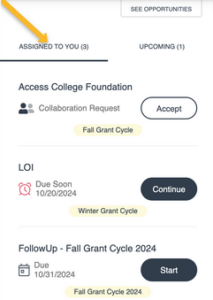
The Assigned To You tab displays any forms that you have either started or have been assigned to you. This includes both open applications and report forms. Click Continue or Start to access the form. A red alarm clock icon will appear next to forms that have a due date within the next two weeks.
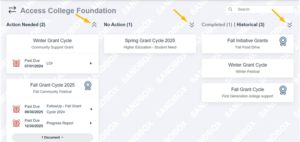
The request section of the applicant dashboard contains the same request information in the To Do panel in four columns: Action Needed, No Action, Completed, and Historical. The search bar can be used to find specific requests from any column.
- The Action Needed column displays any forms that are due.
- The No Action column displays forms that do not need further action from the applicant as administrators process the request.
- A ribbon icon will appear next to approved requests.
- The Completed column displays requests that have been approved and have had all follow ups marked complete.
- The Historical column displays requests from the applicant that have been closed, denied, or abandoned.
On a request card you can:
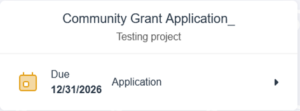
Continue working on a saved application or follow-up forms by clicking Application or the Follow Up forms name (ex. Community Grant Final Report)
View all of the forms and files associated with a request
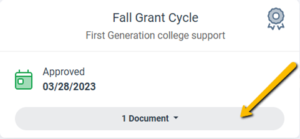
View the request’s decision status. Once an application has been submitted the status will read as Submitted until the request is either Approved or Denied.
If your request is approved, you may be assigned Follow Up Forms to be completed and submitted through the CNYCF Grants Portal. The Applicant request contact will receive an email for each follow up assigned from the Grants Portal. If you need contact person changed please contact Grants@cnycf.org.
The CNYCF Grants Portal considers all these to be Follow Up Forms:
- Pre-Award Form
- Grant Agreements
- Progress Reports
- Final Reports
Follow Up Forms are completed and submitted like other forms/applications.
- You will receive an email notification for each Follow Up Form from the administrator@grantinterface.com email.
- Forms can only be assigned to one person, however multiple people can work on a form together using the Collaborate function.
- Due Dates for Follow Up forms will be communicated in the notification email and also on the Applicant Dashboard of the CNYCF Grants Portal in the Assigned To You section.
Denied requests and requests marked closed by the site administrator are located in the Historical column.
Only one person can be assigned as the lead for an application or follow up form. To allow for multiple people to work on a form together you can use the Collaborate function.
While on the application or follow up form click Collaborate near the top of the webpage.
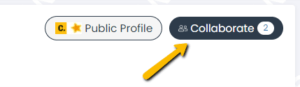
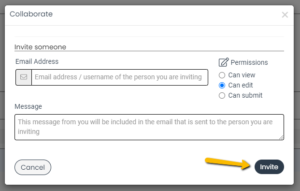
- Enter the email address of the person being invited to collaborate on the request.
- Enter a message to that person, including any specific instructions about questions they need to complete or review.
- Select the permission level for this collaborator.
- The permission levels are view, edit, and submit.
- These collaborator permissions apply to all forms within the request such as the application and any follow ups assigned to you. If edit is selected, for example, the collaborator can edit any forms within the request.
- The system will send an email invitation to the collaborator containing the message and a link to login.
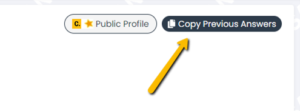
The “Copy Previous Answers” feature can be used to pull in information from a previously submitted application to a new application.
On the new application you are completely click Copy Previous Answers near the top of the webpage.
Previous applications that have the same questions as the new application are displayed.
Select the request to copy responses from, then click Copy Answers.
- If the new form already has responses, this will not overwrite or affect any new responses.
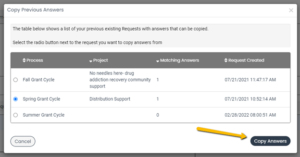
Click Ok on the Confirm Copying Answers popup box.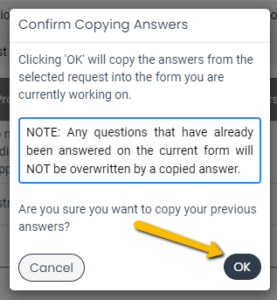
Remember to review each response and make any necessary changes.
Check if any remaining questions need to be answered.
News & Stories
Booker T. Washington Center Chosen by Cayuga County Residents to Receive $75K for Youth-Focused Project
The winning grant will be used to create a countywide teen resource program. The program will ...
Cayuga County Residents Invited to Vote on Community-Designed Projects for $75,000
Winning Project to be Announced at October 1 Community Celebration

Tips on getting your stocks in a pile (and other reminders)!
As clients turn their attention to year-end tax and financial planning, now is an ideal ...
Central New York Community Foundation Welcomes New Hire
The Central New York Community Foundation has hired Madeline Thibault, Esq., as Philanthropic Advisor.
More Than $1.3 Million Distributed to CNY Nonprofits
The Central New York Community Foundation recently distributed $1,301,606 in grants from our Community Fund ...
What We Are Up To | CNYCF Staff Updates
Our staff takes pride in not just serving our community but actively shaping its future. ...

Why Your IRA Might Be Your Most Powerful Charitable Asset
Your IRA can do more than fund your retirement. It can also help you support ...
Chamber Chosen by Cortland County Residents to Receive $75K for Expanding Childcare
The winning grant will be used to help the chamber hire a project professional who ...

A Legacy of Kindness: Laurence A. Hoefler's Gift to Central New York
For nearly 60 years, Laurence “Larry” Hoefler has called Central New York home. Through a ...
Booker T. Washington Center Chosen by Cayuga County Residents to Receive $75K for Youth-Focused Project
The winning grant will be used to create a countywide teen resource program. The program will ...
Cayuga County Residents Invited to Vote on Community-Designed Projects for $75,000
Winning Project to be Announced at October 1 Community Celebration
Tips on getting your stocks in a pile (and other reminders)!
As clients turn their attention to year-end tax and financial planning, now is an ideal ...
Central New York Community Foundation Welcomes New Hire
The Central New York Community Foundation has hired Madeline Thibault, Esq., as Philanthropic Advisor.
More Than $1.3 Million Distributed to CNY Nonprofits
The Central New York Community Foundation recently distributed $1,301,606 in grants from our Community Fund ...
What We Are Up To | CNYCF Staff Updates
Our staff takes pride in not just serving our community but actively shaping its future. ...
Why Your IRA Might Be Your Most Powerful Charitable Asset
Your IRA can do more than fund your retirement. It can also help you support ...
Chamber Chosen by Cortland County Residents to Receive $75K for Expanding Childcare
The winning grant will be used to help the chamber hire a project professional who ...
A Legacy of Kindness: Laurence A. Hoefler's Gift to Central New York
For nearly 60 years, Laurence “Larry” Hoefler has called Central New York home. Through a ...